Archive for the 'Games' Category

Creating a Blackberry Game - Part 3

Looking for part 2?

Gameplay

Now that our initial menu switches control to the Gameplay class (by putting an instance of it on the screen stack - [gameplay extends FullScreen]), we need to actually define it! Gameplay takes care of high level game functionality by multitasking actions via threads.

One thread, "Refresher", takes care of creating new objects, looping through existing objects and telling them to process themselves, then checks for collision detection, adds points gained to total score, tells the graphics engine to redraw the screen, etc. It is basically the primary heartbeat loop that ensures everything keeps updating properly.

The other thread is the EnemyAI thread, which is responsible for looping through all the objects and telling enemies to run their intelligence processing, which sets their movement and firing.

Please note - this is one of the areas where the Blackberry emulator seemed to differ from the real thing. On the emulator, thread processing would simply halt if no key was being pressed, while on the Blackberry it would have no issues. While this might be a fault of mine, it doesn't change the fact that the emulator acted very much differently than the real thing.

Lastly, gameplay has keychar and navigationMovement overridden to process when the Escape or Spacebar is pressed, as well as when the trackball is moved.

GamePlay.java

 
package com.synthdreams.GalacticBlast;
 
import net.rim.device.api.ui.UiApplication;
import net.rim.device.api.ui.container.FullScreen;
import net.rim.device.api.ui.Graphics;
import net.rim.device.api.system.Characters;
import net.rim.device.api.system.Application;
import java.lang.Thread;
import java.lang.Math;
import java.util.*;
 
// Gameplay extends FullScreen only, it doesn't need the functionality of the
// MainScreen object.  Either are screens though, and can be pushed onto the
// screen stack
// Special Note: For those familiar with the concept double buffering, supposedly
// the rim UI automatically does this.  It seems to from what I can see, I
// notice no tearing or graphic anomalies.
// For those unfamiliar, if you blit (write) graphic data directly primary graphic
// buffer, it is out of sync with the refresh of the screen.  This can cause
// tearing or other weird graphic issues, as half of the screen is still being shown
// where the objects were, and the other half where the objects are now.  This
// is solved by first drawing to a back buffer, and then flipping the entire
// back buffer with the front during the screen's refresh.  In java there are
// specific game-oriented screen classes to do this, but supposedly the RIM
// libs do this automatically.
public class GamePlay extends FullScreen
{
    // These three objects are called from many places and are made public
    public static GFX gfx;  // Static object for graphics control
    public static SND snd;  // Static object for sound control
    public static Random rndGenerator; // Static object for random numbers
 
    Refresher _refresher;  // Thread that continually refreshes the game
    EnemyAI _enemyai; // Thread when the enemies think
    Vector _objects; // A vector of all objects currently in play
 
    boolean _active; // Flag if our game is currently active or not (eg did we lose)
    int _score; // Player's current score
 
    // Getters for active and score
    boolean getActive() { return _active; }
    int getScore() {return _score; }
 
    // Refresh is a type of thread that runs to refresh the game.
    // Its job is to make sure all the processing is called for each object, update the background,
    // update score, check for end of game, etc.  This is the main heartbeat.
    private class Refresher extends Thread
    {
        // When the object is created it starts itself as a thread
        Refresher()
        {
           start();
        }
 
        // This method defines what this thread does every time it runs.
        public void run()
        {
            // Temporary variable that stores the score value of all
            // the objects that were just cleaned (destroyed/removed)
            // return a negative number if we died
            int cleanReturn;
 
            // This thread runs while the game is active
            while (_active)
            {
 
                // Level population/processing, responsible for creating new enemies
                processLevel();
 
                // Perform physics by calling each object's process command.  Objects
                // are unique and control their own physics (e.g. a photon blast can move
                // faster than our hero ship), so we loop through all our objects
                // and call the process method on each.
                for (int lcv = 0 ; lcv < _objects.size() ; lcv++)
                {
                    ((OBJ) _objects.elementAt(lcv)).process();
                }
 
                // Collision detection of objects.  If they collide, this method
                // will call the damage method of each object, which might lead
                // to no life for the object
                OBJ.collisionDetect(_objects);
 
                // Clean up stuff that's gone (e.g. life of 0 and in
                // destroyable state, eg explosion graphic), quit if we were destroyed
                cleanReturn = OBJ.cleanObjects(_objects);
 
                // If we didn't die, add the score, redraw, etc.
                if (cleanReturn >= 0)
                {
                   _score += cleanReturn;
 
                   // Now that all our processing is done, tell the graphics engine to
                   // redraw the screen through a call to invalidate (invalidates the screen
                   // and automatically causes a redraw)
                   invalidate();
                }
                else
                {
                   // if we died, mark active as false.
                   _active = false;
                }
 
                try
                {
                    // Attempt to sleep for 50 ms
                    this.sleep(50);
 
                }
                catch (InterruptedException e)
                {
                    // Do nothing if we couldn't sleep, we don't care about exactly perfect
                    // timing.
                }
            }
        }
 
    }
 
    // We have a separate thread that takes care of enemy AI.  This allows us to control how
    // quickly the enemies think outside of our main refresh thread.  That way we can make
    // dumb enemies that think much slower than the action happening around them, or smart
    // enemies that think as fast.
    private class EnemyAI extends Thread
    {
        EnemyAI()
        {
           start();
 
        }
 
        public void run()
        {
            // Just make sure the thread doesn't accidentally run when the game is over
            while (_active)
            {
                // Loop through all the objects and call the think method, which
                // controls the actions of that object.  Technically, this call's
                // the hero's think method as well, but Hero doesn't have the
                // think method overridden from the parent's, which is just blank,
                // so the hero does no automatic thinking.
                for (int lcv = 0 ; lcv < _objects.size() ; lcv++)
                {
                    if (_active)
                        ((OBJ) _objects.elementAt(lcv)).think(_objects);
                }
 
                try
                {
                    // Enemies think 5 times a second
                    this.sleep(1000/5);
 
                }
                catch (InterruptedException e)
                {
                    // Do nothing, again we don't care if timing isn't exact
                }
            }
 
        }
 
    }
 
    public GamePlay()
    {
        snd = new SND(); // Create sound engine
        gfx = new GFX(); // Create graphics engine
 
        rndGenerator = new Random(); // Create random number generator
 
        _active = true; // Mark the game as active
        _score = 0; // Start with a score of 0
 
        // Set our background to stars.png with a speed of 3 pixels per refresh
        gfx.initBackground("stars.jpg", 3);
 
        // Start our music playing.  Something odd I noticed with my Blackberry 8830,
        // which may either be a bug or some functionality I'm missing from the
        // sound routines, is the volume starts out very quiet the first time you
        // start playing. If you stop the music playing and play it again, the volume
        // is fine.  This might not be true for all Blackberrys, but it doesn't hurt
        // anything to start, stop, and start again, so that's what we've done here,
        // just to solve the volume bug/misundertsanding.
        snd.playMusic("music.mid");
        snd.stopMusic();
        snd.playMusic("music.mid");
 
        // Create a new vector to hold all the active objects (hero, enemies, photons, etc)
        _objects = new Vector();
 
        // Our hero will always be the very first object in the vector.
        _objects.addElement(new Hero(Graphics.getScreenWidth() / 2, Graphics.getScreenHeight() - 50));
 
        // Create the refresher and enemy AI last, we want to make sure all our objects are setup first
        // so the threads don't make use of uninitialized objects
        _refresher = new Refresher();
        _enemyai = new EnemyAI();
 
    }
 
    // Process level is responsible for new computer generated events in the game.  In our
    // case, the only one really is creating new enemies.
    public void processLevel()
    {
        OBJ tempObject;
 
        // Throw a new enemy in every 25 pixels.  This can be made more complex if desired
        // of course
        if (gfx.getBackPos() % 25 == 0)
        {
            // Create a new enemy drone with the X coordinate somewhere between the two edges of the
            // screen
            tempObject = new EnemyDrone(rndGenerator.nextInt() % Graphics.getScreenWidth(), 0);
 
            // Set the Y coordinate to above the screen, so it comes in from the top
            tempObject.setY(tempObject.getY() - tempObject.getBitmap().getHeight() + 3);
 
            // Add the enemy to the object vector
            _objects.addElement(tempObject);
        }
    }


    // This method is called when the invalidate method is called from the refresh thread.
    // We have it passing the graphics object over to our graphics engine so our
    // custom graphics routines can take care of any drawing necessary.
    protected void paint(Graphics graphics)
    {
       gfx.process(graphics, _objects, _score, ((Hero)_objects.elementAt(0)).getLives());
    }
 
    // The keyChar method is called by the event handler when a key is pressed.
    public boolean keyChar(char key, int status, int time)
    {
 
        boolean retVal = false;
 
        switch (key)
        {
            // If escape is pressed, we set the game to inactive (quit)
            case Characters.ESCAPE:
                _active = false;
                retVal = true;
                break;
 
            // If the spacebar is pressed, we call the fire method of our
            // hero object, causing him to fire a photon
            case Characters.SPACE:
                ((Hero)_objects.elementAt(0)).fire(_objects);
 
                retVal = true;
                break;
 
            default:
               break;
        }
 
        return retVal;
    }
 
    // The navigationMovement method is called by the event handler when the trackball is used.
    protected boolean navigationMovement(int dx, int dy, int status, int time)
    {
        // If the trackball was scrolled in the horizontal direction, we add that amount to
        // our hero's X velocity
        if (dx != 0)
            ((OBJ)_objects.elementAt(0)).setVelX(dx/Math.abs(dx)*5+((OBJ)_objects.elementAt(0)).getVelX());
 
        // If the trackball was scrolled in the vertical direction, we add that amount to
        // our hero's Y velocity
        if (dy != 0)
            ((OBJ)_objects.elementAt(0)).setVelY(dy/Math.abs(dy)*5+((OBJ)_objects.elementAt(0)).getVelY());
 
        return true;
    }
 
}
 

Gameplay together with the OBJ set of classes is the heart of the logic of our game. Gameplay represents the manager, the high level control that directs actions, while the OBJ classes do the nitty gritty work of processing for each object (objects being things like the hero, the enemies, and photons). Now that we've seen Gameplay, lets take a look at OBJ (objects).

Onto the objects in part 4...

Creating a Blackberry Game - Part 2

Looking for part 1?

Creating the Initial Class

Now that our project is open, let's add the source for our initial class. While the initial class name doesn't have to match the project name, it is a good idea to avoid confusion. Most importantly, the initial class must contain a static "main" method, and must be the only class in the project to do so. This is where the Blackberry will begin execution. It is typical for this main method to instantiate the initial class. The class constructor will immediately create the menu screen and push it onto the screen stack (read below), and the main function will enter into the event dispatcher / message pump loop, allowing the program to intercept keystrokes and trackball movement.

Note - my project name is GalacticBlast - you'll of course want to substitute that for whatever your project/class name is.

GalacticBlast.java

 
package com.synthdreams.GalacticBlast;
 
import net.rim.device.api.ui.UiApplication;
 
/**
 * Initial main class that starts the ball rolling
 * UiApplication is extended to provide Blackberry
 * functionality, specifically the Event Dispatcher
 * and Screen pusher
 */
public class GalacticBlast extends UiApplication
{
 
    public static void main(String[] args)
    {
        GalacticBlast GalacticBlast = new GalacticBlast();
 
        // The Blackberry's message pump, handles key
        // presses and system events
        GalacticBlast.enterEventDispatcher();
    }
 
    public GalacticBlast()
    {
        // The first thing we do is show the menu screen, defined by the
        // 'Menu' class.  We accomplish this with a call to pushScreen,
        // which puts screens on the stack (Class specified must be a type
        // of screen, such as MainScreen).  The top most screen is the
        // one shown.  Our first one will be the menu, and later the game
        // itself will sit on top of this.  When the game quits, it will
        // pop that screen off the stack and return to the menu screen.
        pushScreen(new Menu());
    }
}
 

Nothing major going on there, simply a place to get started. As we can see, things are immediately handed off to our Menu class, which handles the main menu. It is common functionality to have a main menu where the player can play, save, load, configure, quit, etc.

The Main Menu

Our main menu extends MainScreen, as I wanted just a simple screen with text and buttons, using the built in Blackberry look and feel. However, there is nothing stopping you from using the techniques in the actual gameplay section for displaying more advanced graphics in the menu section. But for this tutorial we have a simple main menu.

The concept behind Blackberry forms is there is a layout manager that occupies a certain amount of screen space, and contains fields that it positions accordingly. You can have multiple layout managers on one screen, each with its own child fields. There are different built in layout managers, and you can make your own custom ones as well. For our main menu, we'll both use the default built in manager that simply repeats fields in the vertical direction, as well as a custom manager that allows us to specify the exact X,Y coordinates of fields within the layout manager.

Additionally, we'll be making a special start button that will start the game play by instantiating the Gameplay class and pushing it onto the screen stack (just like our initial class pushed our Menu class onto the screen stack). Also check out our custom fields and field manager that allow us to position fields specifically by X and Y coordinate. Our field manager allows us to specify its height, so we can use it as a simple vertical-space buffer as well.

Menu.java

 
package com.synthdreams.GalacticBlast;
 
import net.rim.device.api.ui.*;
import net.rim.device.api.ui.component.*;
import net.rim.device.api.ui.container.*;
 
/**
 * The menu class handles showing the main menu and intercepting when the user quits or
 * begins the game.  If the user presses the button to begin, the Menu class starts
 * the game going.
 */
 
class Menu extends MainScreen
{
    GamePlay _game;  // GamePlay handles the action part of the game itself
    int _invokeID; // A handle to our invocation of scanning for when the game ends
 
    // To add functionality to clicking the button, we need to override the button's
    // trackwheelClick method.  Here we define _startButton as a button with
    // text, positioning, and trackwheelClick we want.
    ButtonField _startButton = new ButtonField("Start Game!", ButtonField.FIELD_HCENTER | ButtonField.FIELD_BOTTOM)
    {
 
       protected boolean trackwheelClick(int status, int time)
       {
          // If the button is pressed, we create a new GamePlay object
          _game = new GamePlay();
 
          // Then we push it onto the screen stack.  This then becomes the
          // active screen.  See GalacticBlast.java for notes about pushing
          // screens onto the stack
          getUiEngine().pushScreen(_game);
 
          // The invokeLater method allows us to continually run a segment of
          // code from outside the GamePlay object.  In this case, we do
          // this to monitor if the gameplay object is active our not.
          // When the player loses, the object marks itself inactive, at
          // which point we first cancel invoking further, then stop
          // the music from playing, then pop the gameplay screen off
          // the stack so we return to the main menu.
          _invokeID = getApplication().invokeLater(new Runnable()
            {
                public void run()
                {
                    // Check to see if the game is done.
                    if (_game.getActive() == false)
                    {
                        // Cancel invoking this piece of code again (normally is invoked
                        // every 500 ms, as specified below)
                        getApplication().cancelInvokeLater(_invokeID);
 
                        // Kill the music
                        GamePlay.snd.stopMusic();
 
                        // Pop the gameplay screen off the stack, which returns
                        // the user to the main menu
                        getUiEngine().popScreen(_game);
 
                        // Display the final score
                        Dialog.inform("Final Score: " + _game.getScore());
 
                        // We're done with our game object now
                        _game = null;
                    }
                }
            }
            , 500,true); // rerun this code every 500ms
 
          return true;
       }
    };   
 
    // Normally LabelFields are arranged in a very plain order depending on the
    // Layout manager.  They'll repeat vertically with the option of left/center/right
    // justifying.  But sometimes it's nice to be able to specificy exactly in X,Y coordinates
    // where you want the field to go.  This class, in conjunction with the Custom Manager
    // defined below, allows for this
    // Additionally, a "customStyle" is defined for the field.  For our cases, this
    // is either left to 0 for normal X,Y positioning, set to 1 for X set to 1/8th the total
    // width of the screen, or set to 2 for X+fieldwidth set to 7/8th the total width of the screen.
    // 1/8th and 7/8th for the edge of the text allows for columns to be made, for scores,
    // instructions, or anything else.  More custom centering or something more dynamic
    // could be done with this variable, but its fine for our purposes right now.
    class CustomTextField extends LabelField
    {
       int _xPos, _yPos, _customStyle; // coordinates and style
 
       // We pass in the coordinates and the custom style
       CustomTextField(String passLabel, int passStyle, int passX, int passY)
       {
              super(passLabel);
              _xPos = passX;
              _yPos = passY;
              _customStyle = passStyle;
       }    
 
       // Getters for position and style
       int getX() { return _xPos; }
       int getY() { return _yPos; }
       int getCustomStyle() { return _customStyle; }
    }
 
    // Our custom manager is where the magic happens for allowing customtextfields
    // to be placed at any X,Y coordinate.  It reads in the coordinates from the
    // field and places it at those coordinates in the layout.  It will also
    // look at custom layout, and if centered is specified, will ignore the X coordinate
    // and center it at the Y coordinate on the screen.  Additionally, the total height
    // of the manager can be control how much space it takes up regardless of how many
    // fields it contains
    class CustomManager extends Manager
    {
        int _managerHeight; // Total height of the manager
 
        // Pass in desired height.  Scrolling is turned off in both directions.
        public CustomManager(int passHeight)
        {
            super(Manager.NO_HORIZONTAL_SCROLL | Manager.NO_VERTICAL_SCROLL);
            _managerHeight = passHeight;
        }   
 
        // Sublayout is called automatically to position all the internal fields to this
        // layout.  Its sublayouts job to read in the custom coordinates of each of the fields
        // and place them accordingly.
        protected void sublayout(int width, int height)
        {
            CustomTextField field;
 
            // Loop through all the fields contained with the layout manager
            for (int lcv = 0; lcv < getFieldCount(); lcv++)
            {
                //Get the field.
                field = (CustomTextField)getField(lcv);
 
                //Obtain the custom x and y coordinates for
                //the field and set the position for
                //the field.
                switch (field.getCustomStyle())
                {
                   // Custom style 1 is for the left side of the text to be at 1/8th the width
                   // of the screen
                   case 1:
                        setPositionChild(field, width / 8 , field.getY());
                        break;
 
                   // Custom style 2 is for the right side of the text to be at 7/8ths the width
                   // of the screen
                   case 2:
                        setPositionChild(field, width * 7 / 8 - field.getPreferredWidth(), field.getY());
                        break;
 
                   // Any other custom style gets position strictly from X,Y
                   default:
                        setPositionChild(field, field.getX(), field.getY());  
 
                }
 
                 //Layout the field.
                 layoutChild(field, width, height);
            }
 
            //Set the manager's dimensions
            setExtent(width, _managerHeight);
        }
 
        public int getPreferredWidth()
        {
            return Graphics.getScreenWidth();
        }
 
        public int getPreferredHeight()
        {
            return Graphics.getScreenHeight();
        }
    }
 
    // Menu constructor
    public Menu()
    {
        // First, turn off scroll bars for this screen in case we accidentally push past the
        // edge with our fields/whitespace
        super(NO_VERTICAL_SCROLL);

        // We set the title on the screen
        LabelField title = new LabelField("Galactic Blast Demo", LabelField.FIELD_HCENTER);
        setTitle(title);

        // CustomManagers can also be used just as space buffers.  First we make
        // 20 pixels of space
        getScreen().add(new CustomManager(20));

        // Add some text
        add(new LabelField("Instructions", LabelField.FIELD_HCENTER));

        // Create another custom manager, but this one we'll use for more than just
        // spacing, we'll actually position some text fields (our instructions)
        CustomManager instManager = new CustomManager(Graphics.getScreenHeight() - 145);
        getScreen().add(instManager);       

        // A multi-d array that will store our instruction fields
        CustomTextField instArray[][] = new CustomTextField[3][2];

        instArray[0][0]= new CustomTextField("Trackball", 1, 0, 20);
        instArray[1][0] = new CustomTextField("Space", 1, 0, 40);
        instArray[2][0] = new CustomTextField("Escape", 1, 0, 60);
        instArray[0][1] = new CustomTextField("Move Ship", 2, 0, 20);
        instArray[1][1] = new CustomTextField("Fire Cannon", 2, 0, 40);
        instArray[2][1] = new CustomTextField("Quit Game", 2, 0, 60);

        // Loop through our array and add each field to the layout manager with a different
        // font
        for (int lcv = 0 ; lcv < 3 * 2 ; lcv++)
        {
            instArray[lcv%3][lcv/3].setFont(Font.getDefault().derive(Font.PLAIN, 16));
            instManager.add(instArray[lcv%3][lcv/3]);
        }

        // add our button that has the click method overridden
        add(_startButton);

        // Add a buffer of 10 pixels
        getScreen().add(new CustomManager(10));   

        // More text
        LabelField copyrightText = new LabelField("Copyright 2008 Synthetic Dreams", LabelField.FIELD_HCENTER);
        copyrightText.setFont(Font.getDefault().derive(Font.ITALIC, 14));
        add(copyrightText);

    }

}

At this point, your program should be able to load with a menu screen (well, you'll have to comment out any mentions of other undefined classes). You should see something like this:

Only with your own text, of course. Now onto Part 3...

Creating a Blackberry Game - Part 1

Introduction

I've used a number of cell phones, and without a doubt RIM's Blackberry continues to be my favorite by far. Blackberry users will know what I'm talking about - it's just a fantastic communications device. One of its few shortcomings, though, is its lack of a large game library. Historically, the Blackberry has been targeted at the business market, and its software reflects that. However, more and more of these fantastic cell phones have wound up in the hands of the average consumer, and with good reason. And with that happening, the need for some good, fun games increases. This is where you come in!

The first thing that happens to me whenever I get a new device, after playing around with it of course, is wanting to program it. It's just the engineer in me popping out. I've made a number of Blackberry applications since I first got my 8830, but I wanted to tackle making a game. There are a few resources on the web, but some are targeted at java devices in general, and others are slightly old, so I wanted to put together a good tutorial about creating a Blackberry game for modern devices from start to finish.

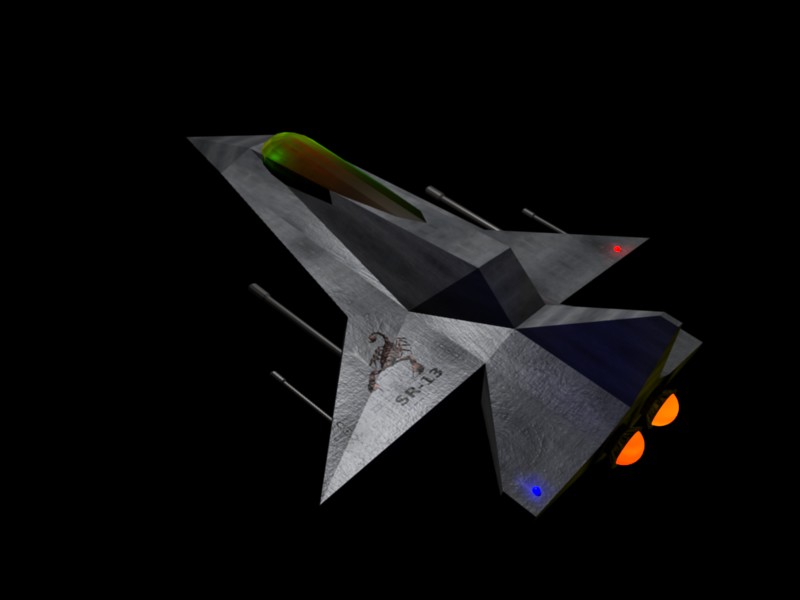
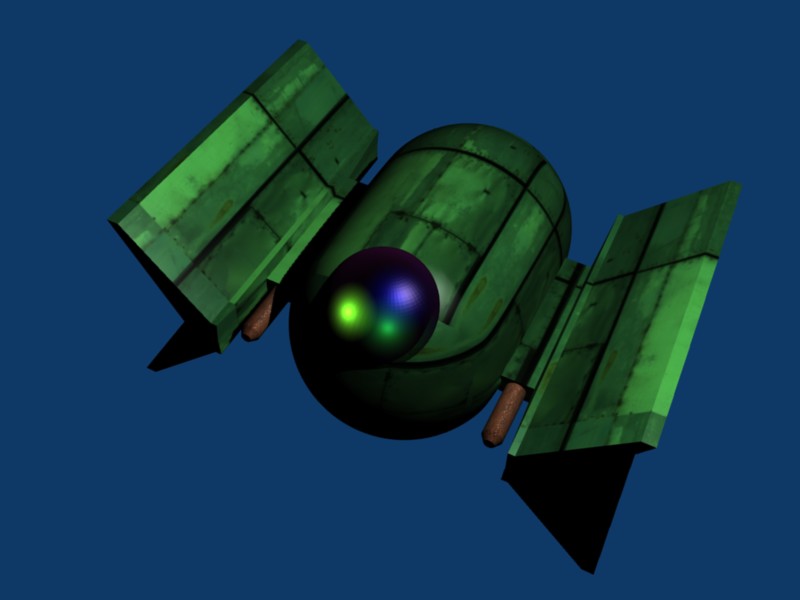
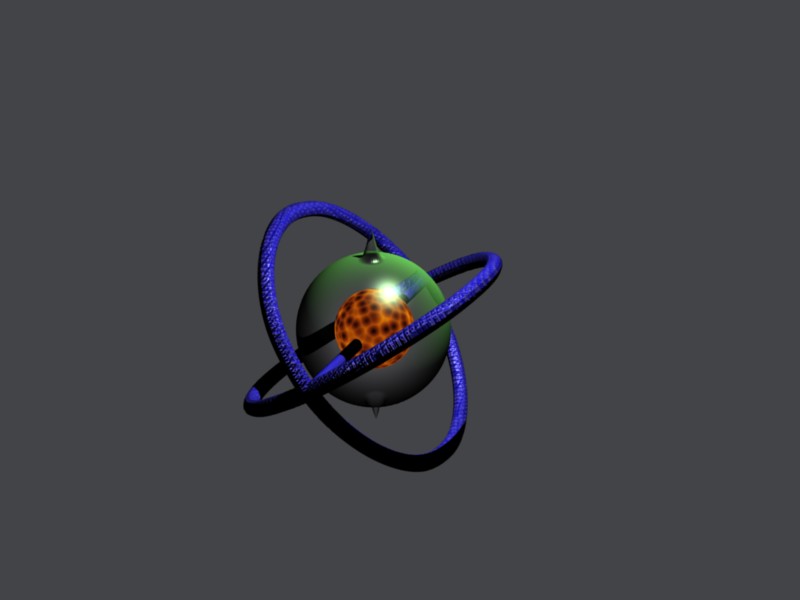
This series of tutorials will document creating a simple space fighter game. A completed example of such a game is available on the Synthetic Dreams website, called "Galactic Blast". The Galactic Blast Demo is a simple example of how easy it is to create a Blackberry game. With the source code documented here, you can go and create your own game, making it as complex as you want. While Galactic Blast is a space fighter, the principle is the same creating any style, from RPG to platform adventure. All development work will be done in Java, and this tutorial assumes you are familiar with this language. Some quick screenshots from the demo:

Getting Started

While strictly speaking it isn't necessary to own a Blackberry to do Blackberry development, it definitely helps. While the RIM development tools come with a Blackberry emulator that is pretty spot on to the real thing, there are a few areas where the emulator differs (which will be mentioned as we go), and it's nice to test it out on a real Blackberry. You definitely will need a compiler and IDE. While there are plugins for Visual Studio, they are limited and not as robust as the full Blackberry Java Development Environment provided by RIM. The Blackberry JDE can be obtained for free from RIM here: http://na.blackberry.com/eng/developers/downloads/jde.jsp.

At the time of this entry, JDE 4.3.0 was used. This download will come with the JDE as well as a device simulator, and tools to simulate being connected to a wireless network on the simulator. The IDE is fairly nice as well, with some intellisense type method/property/class tips.

jde1.jpg

Setting up the Project

After starting up the JDE, you'll want to create a new workspace/project. Name it whatever you'd like. After your project is open, there are a few things you can set immediately. Right click on the project name in the workspace window, and select "Properties". In the General tab, you can set information such as Title, Version, Vendor, and Description. This will appear when the user downloads your application, as well as the title of the icon on the Blackberry itself.

Right clicking on the project in the workspace window will also allow you to add existing items (such as png/jpegs/midis) to your project or create new ones (java source). For this project, we make use of 6 source files, though only 4 of them contain anything major.

Note - when you're compiling and running your program, by default it will run on the emulator. When you want to upload it to your Blackberry to test (without going through the hassle of using the Desktop Manager or OTA downloads), the JDE includes a handy utility called the "javaloader" located in the bin directory. There are a number of tasks it can perform, but one of the most useful is simply copying an executable to an actual device. If your device is connected to your computer via USB, use the "-u" option, and then supply the cod file of the program you wish to upload. E.g. "javaloader -u C:\projects\MyProj1\MyProj1.cod".

Now that you have your project set up, you're ready to start the actual programming. See you in part 2...

« Previous Page