As some of you might have guessed by now, I’m pretty heavily into retro computers. I love them all in different ways, but the C64 holds a very special place in my heart in particular. It was my very first computer (and my only machine for 8 years) – and it introduced me into a world which I never escaped. I learned how to program on it, played my first computer game on it, and spent a great deal of my childhood on it. So while I might be biased as I write this, I’ll try to be as objective as possible.
1. The Game Library
The C64 has always been known as a gaming machine, and for good reason. While the computer has been used across all areas of computing, from music composition and graphic design to business management and financial accounting, its library of games is MASSIVE. Estimates come in at over 21,000 titles, and new titles are still being developed all the time (Check out the most comprehensive database at GB64). And like any media, from music to movies, just because the title is older doesn’t mean it’s not still enjoyable – there are some simply great games for the C64 that are still lots of fun to play.
2. Quantity Produced
The Commodore 64 is still the best selling computer to this day – and most likely will be forever. Saying it sold well would be a gross understatement – it crushed the home computer market. Jack Tramiel, founder of Commodore, did a lot of things right in his day, and one was the price point of the machine. While it started at $595, it eventually dropped to $200, and estimates of units sold range from 17 to 30 MILLION. Even with a large portion of owners throwing their machine away over time, 30 million computers simply don’t disappear. It is still extremely easy to pick up a C64 off of eBay, Craigslist, or other online sites.
3. The Community
While this is true of a lot of the classic computers, it is especially true of the Commodore line – there is still a huge following for this machine. It’s likely if you look enough online, you’ll still find a user’s group, yearly convention, or informal get-together that includes, or even focuses on, the C64. I’ve personally attended a couple conferences (TPUG‘s World of Commodore and ECCC), and have been in close contact with other groups (Commodore Computer Club and Users Group in Vancouver, WA) – and they’re all friendly guys and gals who have a common love for all things Commodore (and Amiga, and Apple, and Atari, etc…). They are the true heart that continues to drive the C64 onward!
4. The SID Chip
The MOS 6581/8580 SID is arguably one of the greatest sound chips to ever be produced. During its time, there was no other 8-bit computer that had the sound capabilities of the C64. Even in contemporary times, the unique sound quality of the SID is still a desired effect that modern musicians seek to take advantage of. Newer dedicated hardware, such as the SIDStation, has been used by groups such as Timbaland and Machinae Supremacy to produce the sweet C64-style synth sounds that can’t be gotten anywhere else.
5. Hackability
While computers today can render 3D worlds while playing a 20 part symphony and downloading a set of encyclopedias, this comes at a cost – and that cost is complexity. The beauty of a machine like the C64 is a hardware or software developer’s ability to interact directly with the machine. You can read and write directly from/to memory, tie into the system bus, and do a whole other array of low level things that 62 layers of hardware and operating system don’t allow you to do on a new PC. For those who love to tinker, this is a dream.
6. New Capabilities
Due in large part to #2 and #5, new hardware still being made constantly, which breathes incredible new life into the machine. From SD/CF card readers and Ethernet adapters, to mp3 players and accelerators, the Commodore 64 of today is a different beast than in its 80s heyday. When a machine with a 1 MHz processor and 64K of RAM can surf the web, tweet on Twitter, and can access files on an 160GB IDE hard drive, that’s truly amazing.
7. Strong Emulator Support
Using a Commodore 64 doesn’t necessarily mean you need the hardware anymore. Since the advent of faster machines with emulation capabilities, many developers have been working on virtual versions of the hardware counterpart. Many years have passed, and these are now solid, amazing, and free applications that allow you to use a C64 on a variety of devices, from computers and laptops to PSPs and iPhones. Even if all the hardware one day disappeared, emulators never will. Two of the most popular ones are VICE and CCS64).
8. FPGA Implementations
In the same vein as #7, some hardware wizards have gone the emulation route, but instead of producing a software version, have reimplemented the machine in FPGA hardware. In this manner, the C64 exists as firmware on a programmable chip, which allows for smaller, cheaper, and easily upgradable/hackable versions of the C64. And since the machine exists as firmware, many of these devices have different models of computers on the same device – flip the switch and go from using a C64 to an Amiga 500. Examples include Jeri Ellsworth’s DTV and the MCC (Multiple Classic Computer).
9. The Scene
Since the beginning, due to its powerful sound and graphics capability, the C64 has been used to demonstrate elite programming skills through dazzling shows of animation and music. While it started in large part as intros to software cracks, the demo scene grew into a beast all of itself. Some of the greatest artistic, musical, and programming talent to ever hit a computer has gone into software demos. And to this day, programming gurus continue to show off their talents on the C64 – not only because it’s a great platform to program for, but feats are all the more impressive when accomplished in minimal space/computation. A list of upcoming Demo parties can be found at Demo Party.net
10. The Shameless Plug
And the C64 is the only place to find Shredz64 (Guitar Hero for the C64)! 😉 It’s just fun to show your friends that a machine made in 1982 can do the same things that a new PS3 or Wii can do. (Sorry, had to do it)
So if you’ve never tried a C64, or haven’t touched one for a long time – find an emulator, pick one up off eBay, or borrow a friend’s – and find out for yourself why it’s still the most amazing computer ever made!

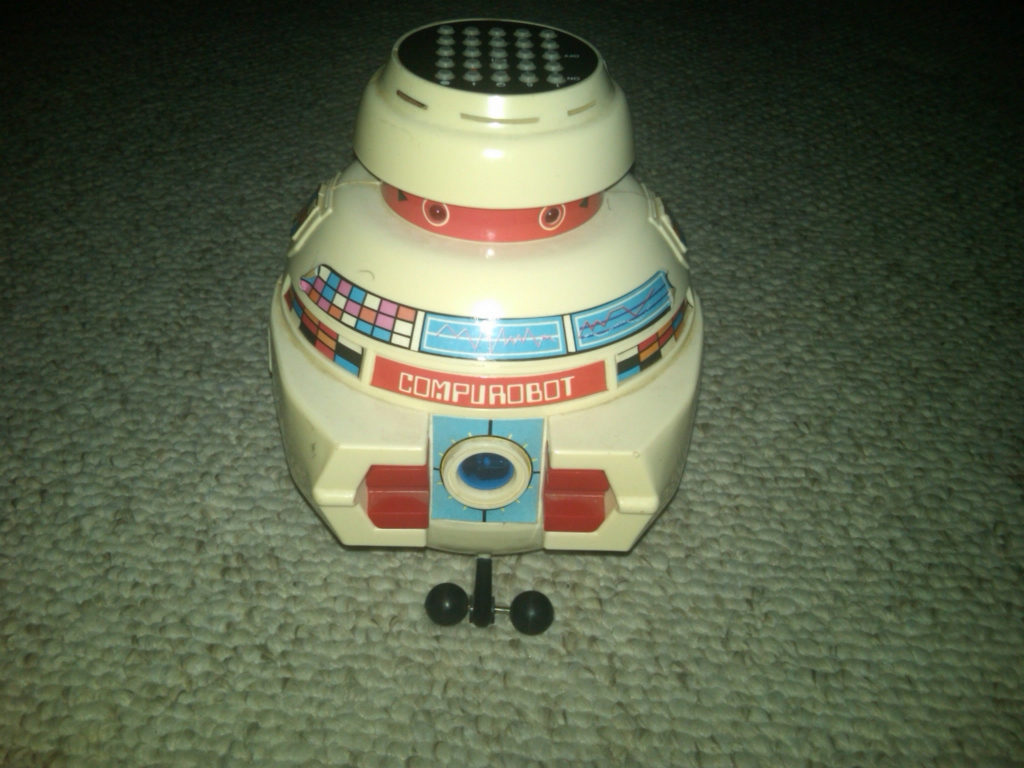
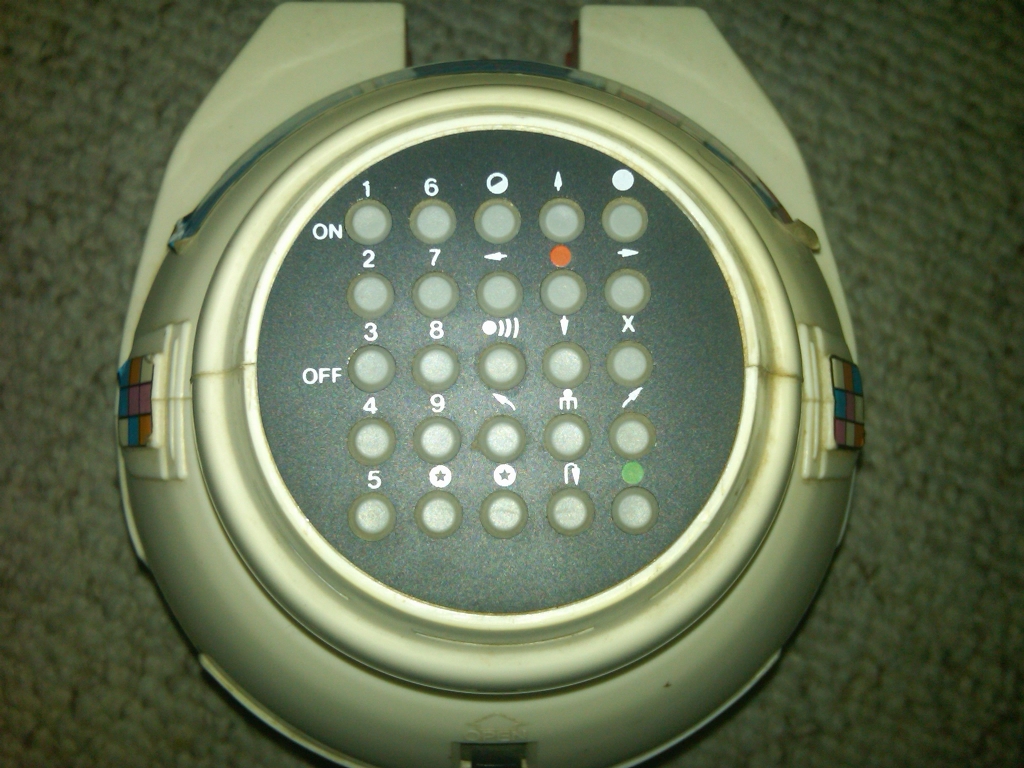
 At first glance, Vincent looks like a simple toy – he has a fun shape, features LEDs for eyes, flashing bulb in his belly, colorful stickers, and a sturdy design. He is driven by two independent wheels below and supported in the front by two smaller wheels. However, there is quite a bit more at play than a simple toy that runs around the room. Examining the top of Vincent reveals a 5×5 Matrix of buttons, each with an icon indicating its function. It turns out Vincent, the Compurobot, is a programmable robot!