Archive for the 'Games' Category

Blackberry Programming: Alter Bitmap Color on the Fly

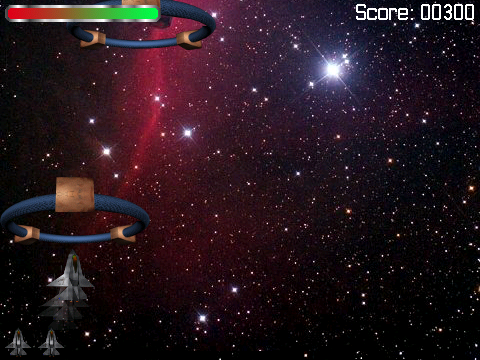
While working on my current Blackberry game, I ran into a situation where I needed to change the color of of a bitmap. Specifically, I wanted to signify an object was “hit” by temporarily tinting it red – i.e. I wanted to keep the original bitmap color pattern, but wanted to increase the red portion of all the pixels so it had a red shade to it.

Example
Fighter - Before
Before
Fighter - After
After

ARGB Methods

Off the bat, I couldn’t find any method of directly altering the bitmap color using built in routines. There are a few routines for altering the alpha channel of bitmaps, but nothing for the color channels. After sifting through all the members of the Bitmap class, I came across the getARGB method (see link for details). This method will populate an int array with argb data, e.g. an int (4 bytes) per pixel signifying the alpha, red, green, and blue values (each value stored per byte). And sure enough, there is a setARGB method as well, for taking such an int array and applying it to a bitmap object.

The Strategy

With these methods at our disposal, it now becomes a matter of populating an array with ARGB data, then altering each int in the manner desired to achieve a specific effect. In this case, increasing the value of the RED byte (2nd byte) to increase the red tint of each pixel. However, the sky is the limit, as you could alter transparency for each pixel (alpha byte) and create a disintegration effect, average and equalize each of the color bytes to create greyscale, invert the colors, dim/brighten, etc. However, for now, lets stick to adding a red tint.

The Code

 public static Bitmap generateHitBitmap(Bitmap passBitmap) {
      Bitmap retBitmap;  // Altered, tinted bitmap being returned
      int[] argbData; // Array holding the ARGB data
      int redData;  // The red value of a pixel

      // Create a new, empty bitmap with the same dimensions
      retBitmap = new Bitmap(passBitmap.getType(), passBitmap.getWidth(), passBitmap.getHeight());

      // Prepare the ARGB array
      argbData = new int[passBitmap.getWidth() * passBitmap.getHeight()];

      // Grab the ARGB data
      passBitmap.getARGB(argbData, 0, passBitmap.getWidth(), 0, 0, passBitmap.getWidth(), passBitmap.getHeight());

      // Loop through each pixel in the array
      for (int lcv = 0 ; lcv < argbData.length ; lcv++) {
         // Get the red data by masking out the 2nd byte
         redData = (argbData[lcv] & 0x00FF0000) >> 16;

         // Increase the red value by 80 (maximum of 255)
         redData += 80;
         if (redData > 255) redData = 255;

         // Shift it back to the right place, and set it back into array
         redData = redData << 16;
         argbData[lcv] = (argbData[lcv] & 0xFF00FFFF) + redData;
      }

      //  Set the return Bitmap to use this altered ARGB array
      retBitmap.setARGB(argbData, 0, passBitmap.getWidth(), 0, 0, passBitmap.getWidth(), passBitmap.getHeight());

      return retBitmap;
   }

Note: There is some bitwise math going on here, and a few ways to accomplish this. I like to isolate out the value first and work with it separately, but you may feel more comfortable working directly with the array – either works.

Please feel free to share any cool effects you’ve achieved altering the ARGB data, or even constructing completely new ARGB data on the fly – I would love to see programmatically generated bitmaps!

A Quick Kudos to Blender

As I mentioned in a previous post, I’m currently developing another Blackberry game, one I hope that turns out fun enough that people will want to play. As with most games, it requires graphics – which has actually always been somewhat of a road block for me. I don’t have many acquaintances that are able / have time / are interested in doing the artwork for a game, especially one that isn’t going to make much, if any, money. I myself love art, but I’m not very good at it. That leaves the options of buying stock art for obscene amounts of money (due to rights to use it commercially – I try to always play by the book), or finding royalty free art – which is usually difficult and I can never find exactly what I’m looking for.

3D packages are a good middle ground for me. Granted – it takes a boatload of talent and experience to get professional looking results, but you can get respectable art with a little practice. Most 3D packages are fairly expensive, which can again be a roadblock – but this is where Blender comes in. Blender is an open source 3D rendering application available for pretty much all platforms. I’ve heard the learning curve is a little steeper with Blender than with other packages like 3DS (I’ve only used 3DS once so I don’t quite remember), but after you use it for a week or so, you get into the rhythm and it’s not bad at all – and then from there you start learning cool tricks for lighting and textures, and things look better and better.

Below are a few objects that may appear in the game in one form or another. They’re not great by any means, especially compared to what Blender pros have put out (Check out the cream of the crop from the Blender site), but it’s not bad for a day or twos work, and after getting shrunk down for a mobile platform, is acceptable.

SR-13

Enemy Drone

Tetron Mine

And, Blender is just fun to play around with – especially when you start getting into animations. So if you get a chance, definitely check it out, for fun – or for your next project.

Blender Website

Using Excel to Create Your Game’s Binary Data Files

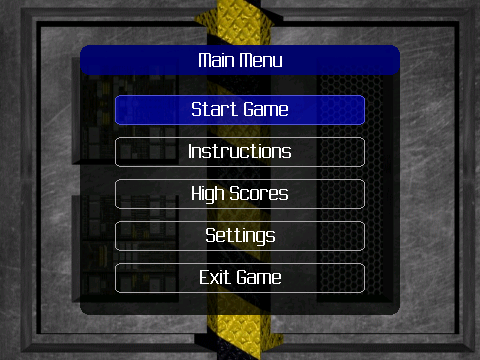
I don’t think I’ve mentioned it here yet, but I’m currently in the middle of developing a new Blackberry game that I hope to have on App World when I’m complete (as I get closer to completion I’ll put some screen shots up). I’ve always wanted to put an application or game up on one of the mobile stores, not so much to make any significant amount of money (which I won’t), but just to get the program into more people’s hands easily. We’ll see how it goes – but until then, onto the point of this article.

One of the things I ran into on this game (and others) is the need to generate binary files – specifically in this case, level data that dictates where and when objects are in the game, their effects, behaviors, etc. While there is always the option to create a text file to hold this data, this can be problematic in many ways. First, the data you need to store may actually be binary data that doesn’t lend itself to text conversion – also, more handling to read the file (encoding, line feeds, parsing), larger files (which is a concern on devices with little storage like older Blackberrys), and no obfuscation to the end user (which kind of takes the fun out of the game if they can open up this file easily and read where everything is). Binary files are definitely the way to go. And while sometimes it makes sense to make a level editor that will generate the binary files, in some instances you may not have the time or resources to accomplish this. It would be nice to have a tool to generate these files so you don’t have to go hexediting for hours to make a 1K file.

Excel at Creating These Files!

I find Microsoft Excel to be an extremely useful tool in so many situations, especially those where I need to bang out results quickly. Past the normal math, accounting, and analysis capabilities, Excel is awesome for generating files that depend on working with lots of imported data, such as script files and, in our case, binary data files.

In my example, each object had 7 values associated with it. And with some of these values being 2 bytes in size, this came out to 12 or so bytes I would have to enter hex code in with an editor, per object. If I wanted 500 objects, thats 6K of writing hex values. No thanks. It would be much easier to write these values into Excel cells (even auto-generating many of them using Fill-Down with an equation). Then, using VBA (Visual Basic for Applications) that’s built into Excel, dump the contents of the cells out into the binary format I want them in. So let’s see how to do that.

Settings Up Your Sheet

This is the simple part. For this example, I have created a fictional game called “Just Desserts” in which each level consists of a screen filled with desserts and vegetables, and you must eat the various cakes, pies, and puddings but avoid carrots and celery. Our data file that describes each level has 4 values per entry.

Value 1: What level this food is on
Value 2: The ID of this food (E.g. 1=cake, 2=pie, 3=pudding, 4=celery, 5=carrot)
Value 3: X coordinate on screen of this food
Value 4: Y coordinate on the screen of this food

Here’s what an example spreadsheet would look like:

Excel Data

So each row is an object, and each column is one of the values. In our example above, we see on level one we should create a cake at coords (25,70), a pie at (50,20) and another at (10,10), and a celery at (400, 400). On level 2, we should create a cake at coords (250, 30), a pudding at (20,160), and a celery at (70,90). You can manually enter your data in, or use the power of excel and generate the data using a formula – it’s up to you. Once your data is in your spreadsheet, then comes time to turn it into a binary file that can be used by your game.

Macro Time

The power of Excel is increased 10-fold by the ability to include programs in your spreadsheets. Excel uses Visual Basic to accomplish this. By creating a new macro, you can attach a Visual Basic function to it that gets called whenever your macro is. In Excel 2007, Macros are under the View tab. After you create a new one, you are presented with a code editor where you can write your VB function.

Below is the example VB function that would work with the above data and pump it out into a file. Please note – one thing you may run into depending on what language you’re working with, and what architecture, is a little/big endian conflict. VBA pumps out little-endian, but since I was creating a BB game in Java, it expects big endian. I included how to do this inline below, though you could make a function out of it as well.

Sub GenDatFile()

   Dim TempByte as Byte ' Holds 1 byte
   Dim TempInt as Integer ' Holds 2 bytes

   ' Specify the path and filename of the binary file.  You could turn this into an input to specify it at runtime as well.
   Open "C:\temp\objects.dat" For Binary Access Write As #1 ' Open it for binary writing with the handle #1

   CurrentRow = 1

   ' Keep reading the spreadsheet until we come to a blank row, then we're done
   Do While Not IsEmpty(Worksheets(1).Cells(CurrentRow, 1))
      'Level of object
      TempByte = Worksheets(1).Cells(CurrentRow, 1) ' Get the value from the first cell in the current row
      Put 1, , TempByte ' Write that byte to the data file (handle #1)

      'ID of object
      TempByte = Worksheets(1).Cells(CurrentRow, 2) ' Get the value from the second cell in the current row
      Put 1, , TempByte ' Write that byte to the data file (handle #1)

      'X Coordinate of object - this is a 2 byte value since it can be greater than 255, we need to swap endian
      TempInt = Worksheets(1).Cells(CurrentRow, 3) ' Get the value from the third cell in the current row
      TempByte = TempInt \ 256 ' Integer divide by 256, aka shift right 8 bits and put that into TempByte
      Put 1, , TempByte ' Write that byte to the data file (handle #1)
      TempByte = TempInt AND 255 ' Mask the data to grab the first byte and put that into TempByte
      Put 1, , TempByte ' Write that byte to the data file (handle #1)

      'Y Coordinate of object - this is a 2 byte value since it can be greater than 255, we need to swap endian
      TempInt = Worksheets(1).Cells(CurrentRow, 4) ' Get the value from the fourth cell in the current row
      TempByte = TempInt \ 256 ' Integer divide by 256, aka shift right 8 bits and put that into TempByte
      Put 1, , TempByte ' Write that byte to the data file (handle #1)
      TempByte = TempInt AND 255 ' Mask the data to grab the first byte and put that into TempByte
      Put 1, , TempByte ' Write that byte to the data file (handle #1)

      CurrentRow = CurrentRow + 1 ' Move to the next row in the spreadsheet
   Loop

   Close 1 ' Close the file (handle #1)

End Sub

And we’re done! A very simple program, with only a tiny bit of magic to flip the bytes when we need to make little endian into big endian. But a simple program which saves us hours of tedious hex encoding, plus the power of Excel gives us data storage and manipulation that we didn’t have to take time to manually program ourselves.

Next time you’re faced with a problem that deals with working with a lot of data, keep Excel (or it’s open source brethren) in mind – it can definitely save you a lot of time and headaches.

Next Page »